Script reference is available here
How to use 2dtoolkit UI Playmaker Actions
1. Init the scene
Create a new 2dToolkit Camera and a new tk2dUIManager game object with the “tk2dUIManager” component linked int your scene to use the 2dToolkit UI plugin.
2. Create a new UI Item
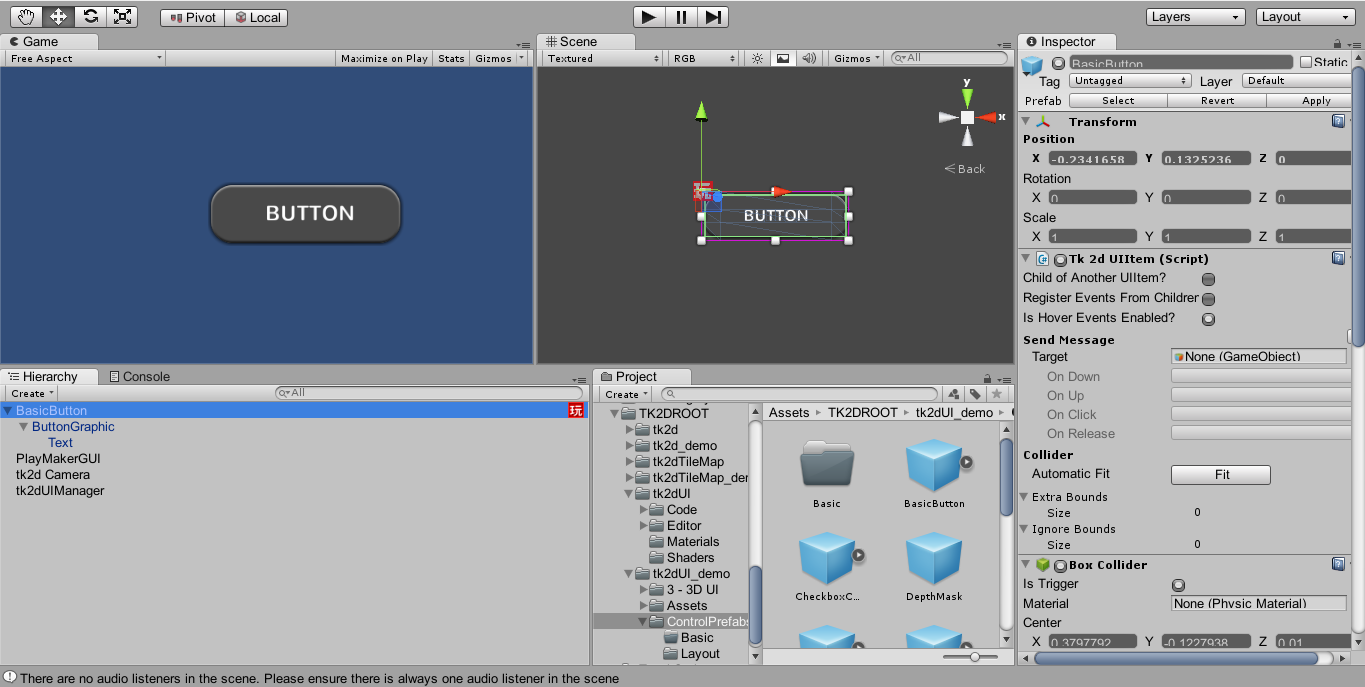
You can use the control prefabs available in the tk2dUI_demo folder of 2D Toolkit.
For example we can create a new Basic Button.
3. Use PlayMaker with the UI Item
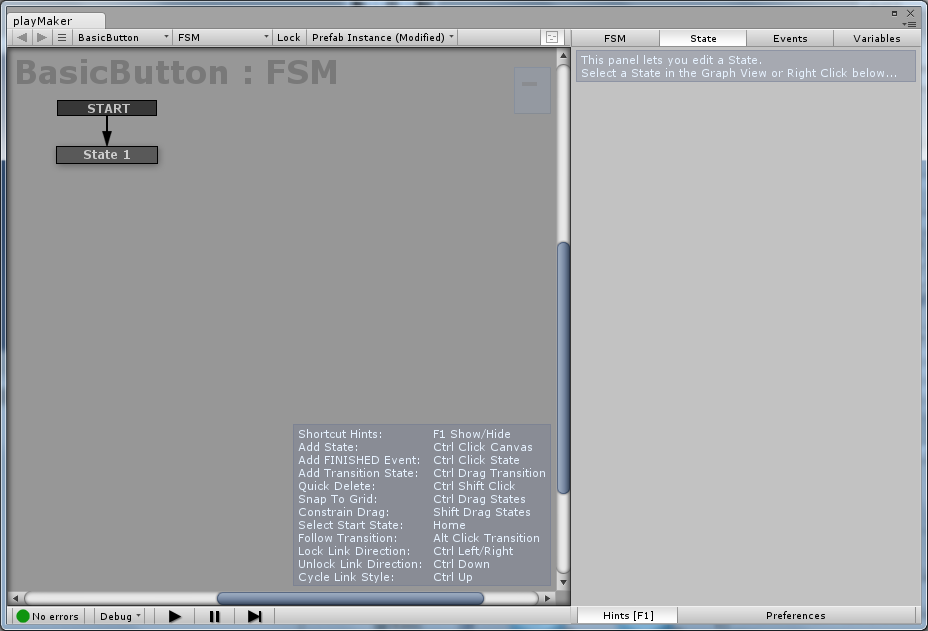
Open PlayMaker and add an FSM to the button or create a new game object and attach an FSM to him.
4. Discover the new 2dtoolkit UI Actions
Click on state and click on the “Action Browser” button to add a new playmaker action.
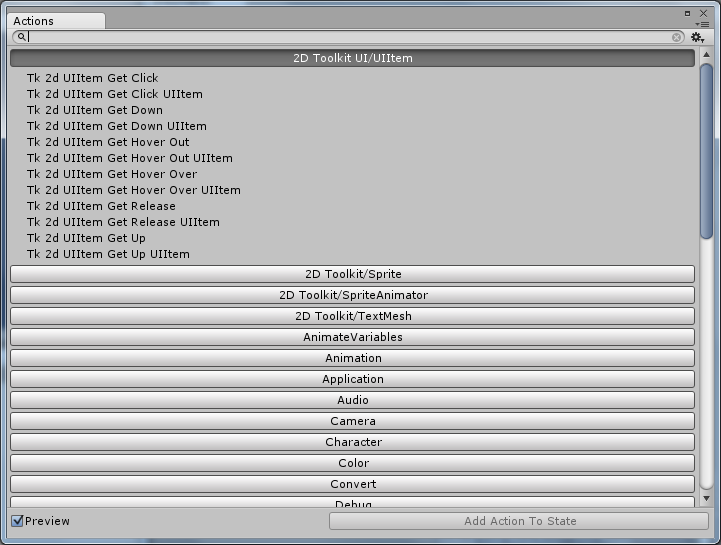
In the list of actions you can see the “2D Toolkit UI/UIITem” category .
Click on this category and the actions appears :
- Get Click : Manage the click event in the UIITem
- Get Down : Manage the down event in the UIITem
- Get Hover : Manage the hover event in the UIITem
- Get Hover Out : Manage the hover out event in the UIITem
- Get Hover Over : Manage the hover over event in the UIITem
- Get Relase : Manage the release event in the UIITem
- Get Up : Manage the up event in the UIITem
There is 2 version for each event. One basic version and one advanced version wich return the Game Object and the UIItem object associated with the UIItem.
More informations about events are available in the official documentation of 2dtoolkit (http://www.unikronsoftware.com/2dtoolkit/docs/latest/html/classtk2d_u_i_item.html).
5. Use the new 2dtoolkit UI Actions
All the actions have the same behaviour. For example we can use the click event.
Just double click on it to add the actions in the FSM.
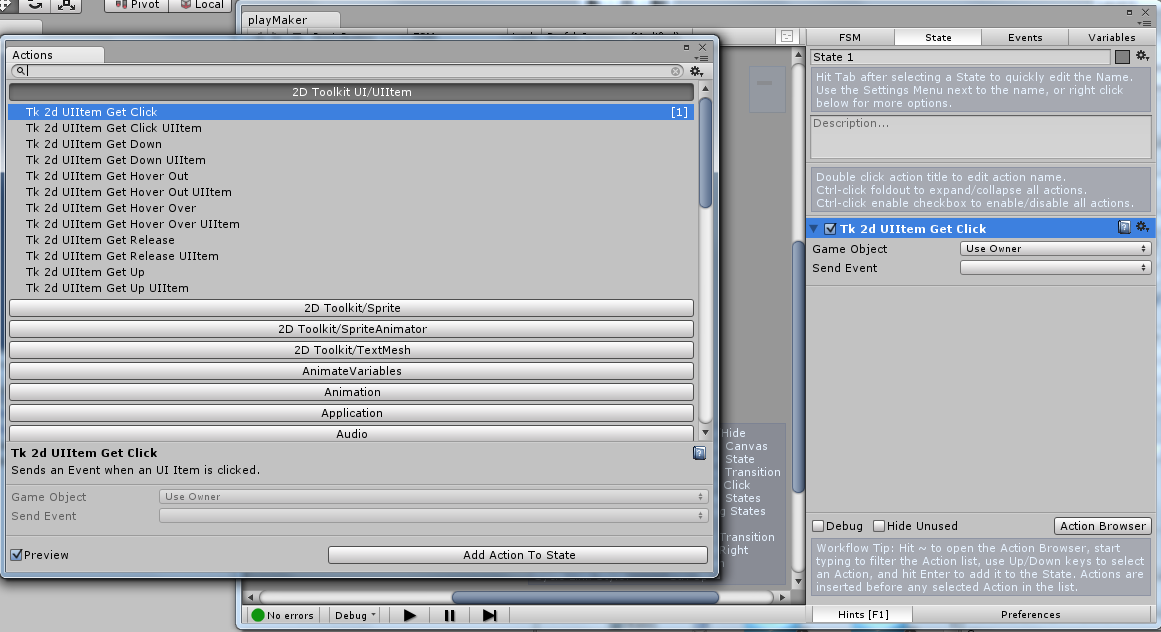
There is 2 variables on the basic action :
Game Object
It’s the game object to use. If you have added the FSM directly on the UIITem Button you can select Use Owner else you can select another Game Object that contains a UIItem component.
Send Event
The event sent when the event is triggered. In this case the click event.
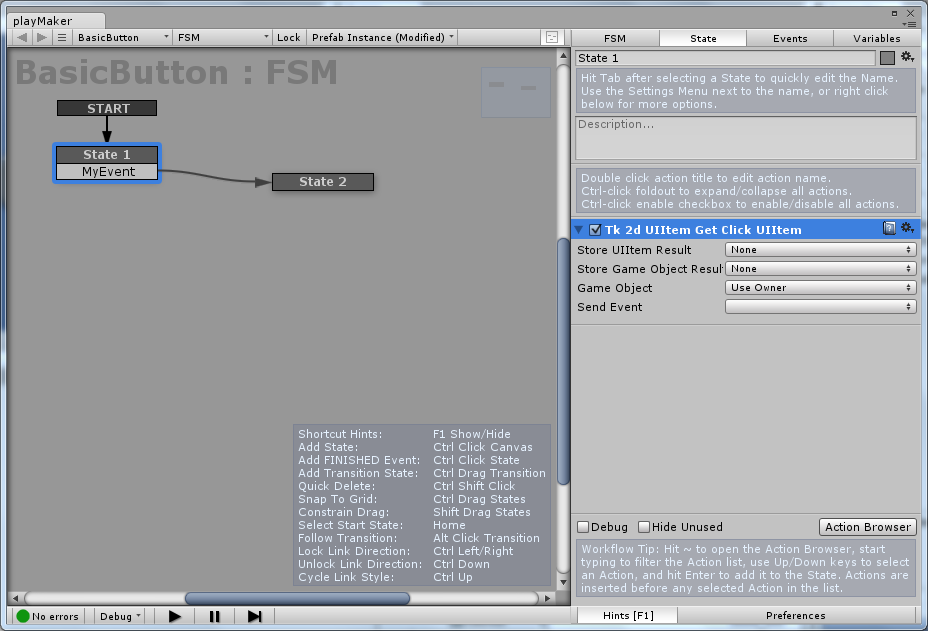
And 2 more variables on the advanced action :
Store UIIten Result
Get the UIItem associated with this action
Store Game Object Result
Get the Game Object associated to the UIItem
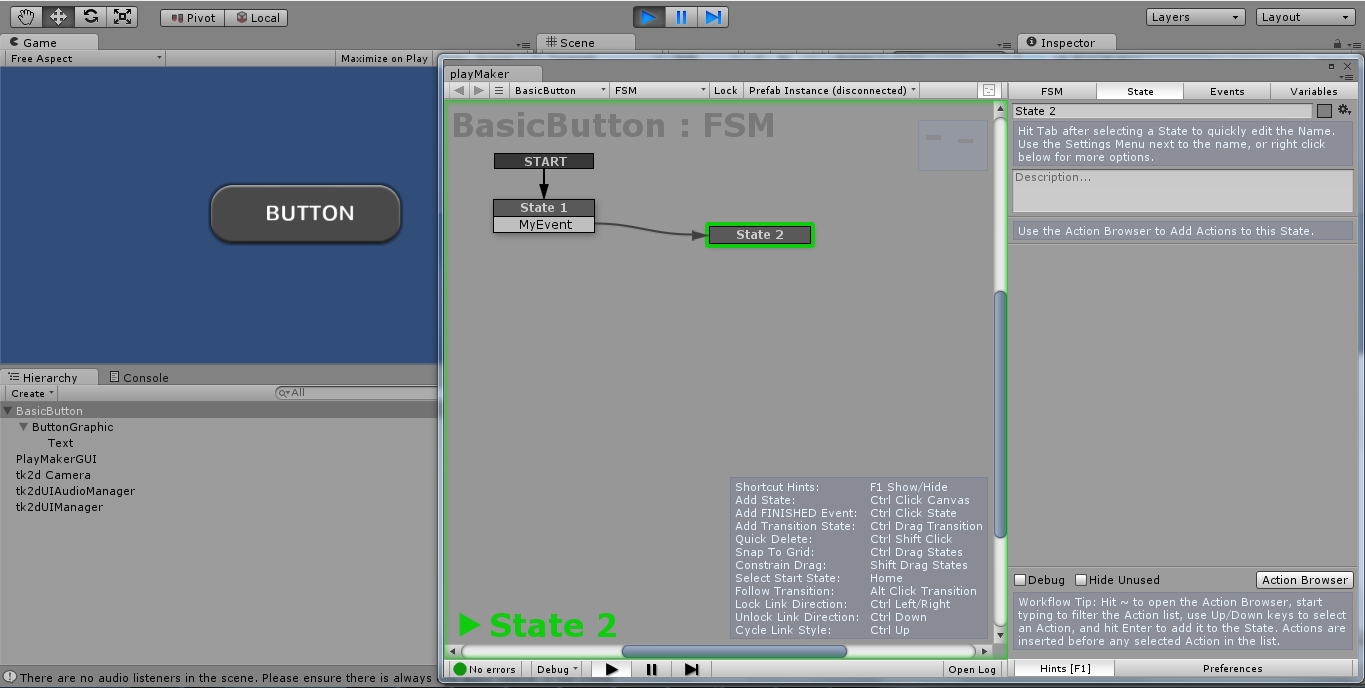
To use the action just create a new event in the event tab of Playmaker and add this event to the action.
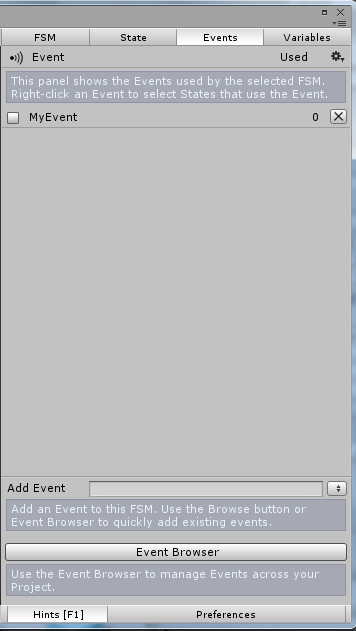
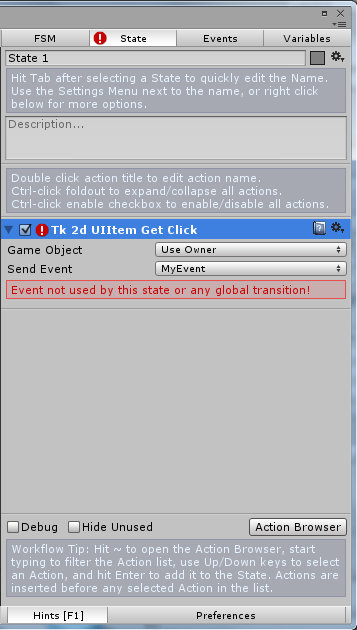
Now create a new State in the FSM
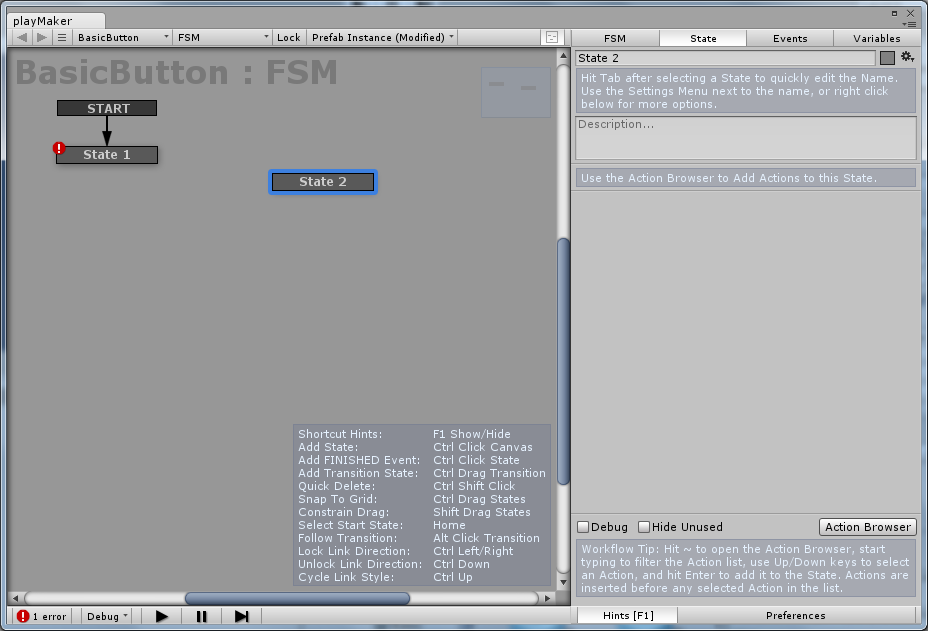
Add a new Transition with the event created previously and link the 2 states
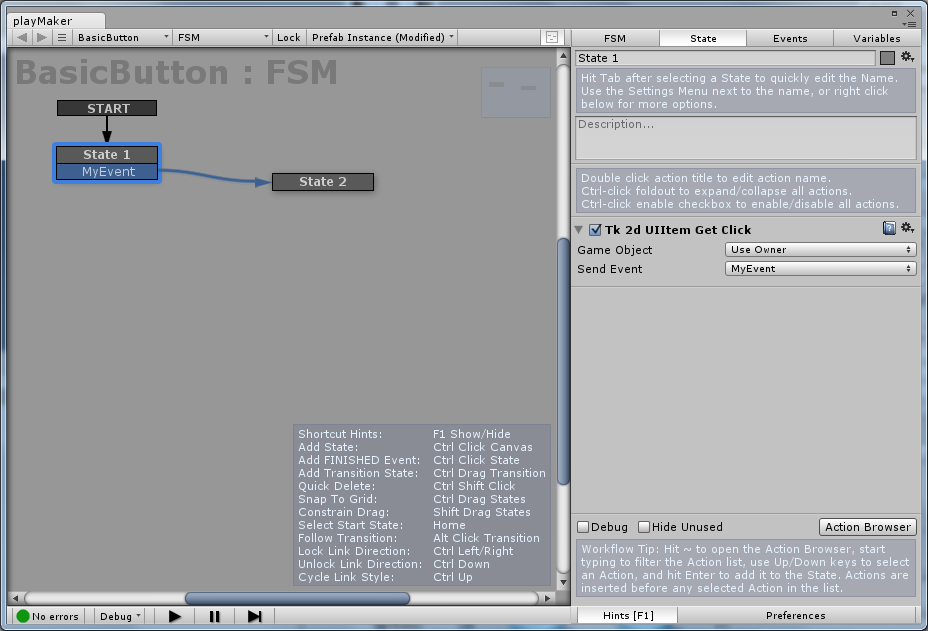
That’s it ! Now when you click on the button the “State2” is called.